Draft, published, and back again
Draft
Who can see it
Only you, signed in
Address
/preview/{hash}
Every change is saved as you make it. Nothing here is reachable by a visitor, and a Marker pointed at a draft has nothing to open.
Published
Who can see it
Anyone with the link
Address
/view/{hash}
The public page. Edits you make afterwards go live the next time someone opens it. There is no second publish step for changes.
Unpublished again
Who can see it
Nobody
Address
None
The content stays exactly as you left it. Visitors get a short 'not available' page, and any Marker pointing here lands on the same.
Going live
Publish in the builder's top bar opens a confirmation panel headed “Ready to go live?”, with a miniature of the page, the Experience name (still editable), the public address with a copy button, and three readiness checks.
- Heading
- Does the page start by telling a visitor what they are looking at.
- Content
- Is there anything below the heading.
- Brand
- Does your account have a logo uploaded.
None of the three blocks you. A thin page also draws a gentle warning suggesting more blocks before you go live. Press Go Live and the Experience is public immediately: no review, no queue and no propagation delay.
The hub you land in
Publishing hands you a three-step hub, which is also what Manage opens on an Experience that is already live.
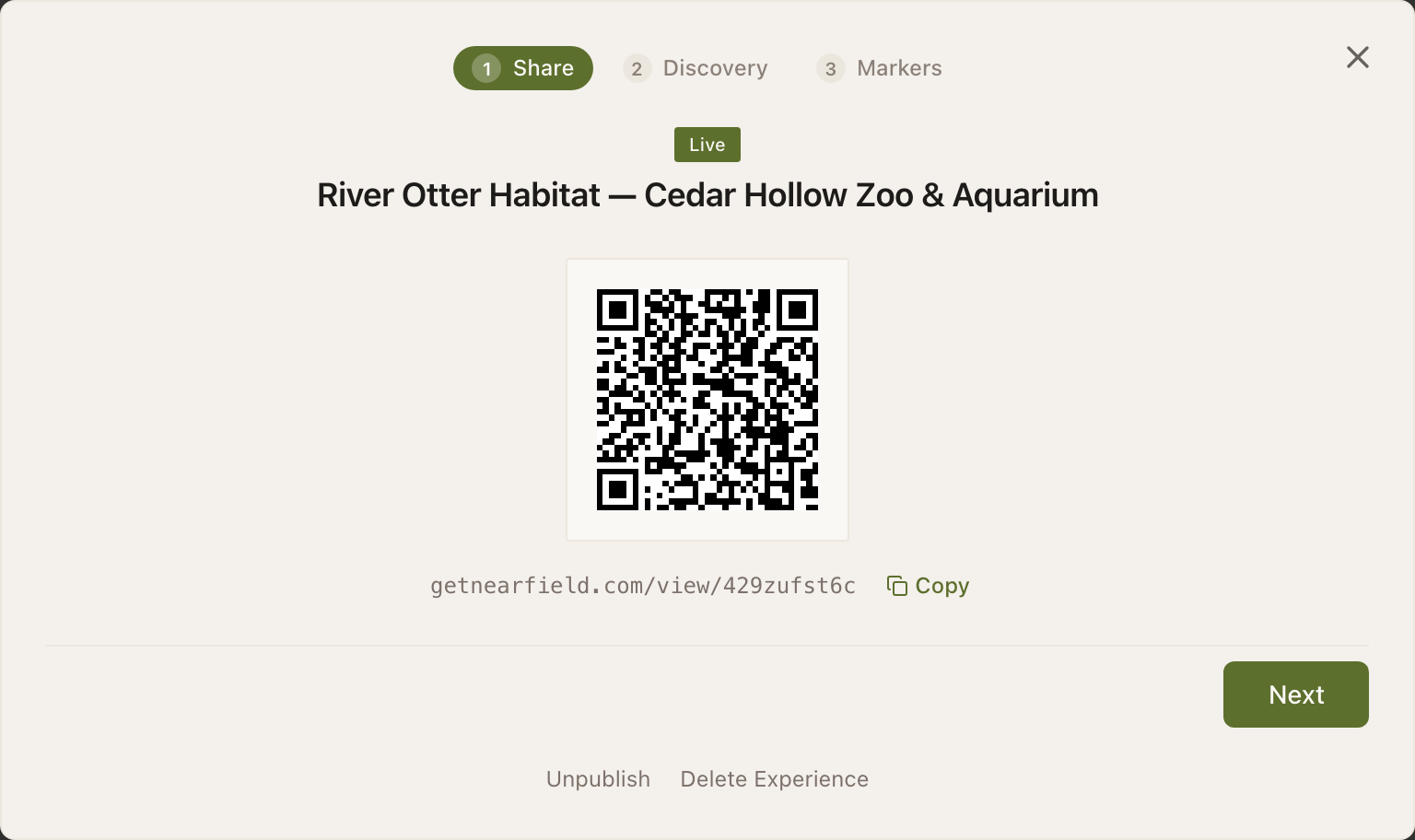
| Step | What it holds |
|---|---|
| 1. Live & share | A QR code, the public link, and a copy button. |
| 2. How guests find it | Whether this should be tap only, scan only, or both. The default is both. |
| 3. Bring it into the real world | Connected Markers, linking a Marker by PIN, and ordering more. |
With no plan, step three connects up to three Markers, the same as an Intro 3-Pack, and up to 30 while you build and during the trial. Once they are all placed, a note about the limit replaces the connect tools. Linking a Marker to a live page starts your 14-day trial if it has not started yet. The Experience itself is fully live and reachable by its link either way.
Editing after publishing
There is no second publish step. Once an Experience is live, every edit you make is what the next visitor sees: change a price at 9am and the 9:01 tap has the new one. Nothing is cached against you, and no Marker needs re-linking.
Unpublishing
Unpublish is in the manage panel. It takes the page off the public web and keeps everything exactly as you left it: blocks, theme, answers, stats and Marker links all survive.
Visitors then get a short “this Experience is not available” page. So does anyone who taps a Marker pointing at it, which is the part to think about before unpublishing something with Markers on walls: a Marker pointing at an unpublished Experience goes nowhere until you publish again or point it somewhere else.
| You want to | Do this |
|---|---|
| Take content down for a week | Unpublish. Everything comes back untouched when you publish again. |
| Replace it with something else | Build the replacement, then relink the Marker. No downtime at all. |
| Close an exhibit temporarily | Keep it published and edit the top block to explain. A tap that lands on an explanation beats a tap that lands on an error. |
| Get rid of it permanently | Delete it from your dashboard. This disconnects every Marker pointing at it, and cannot be undone. |
Downgrading does not unpublish anything
Moving to a smaller plan, or ending a trial without one, leaves published Experiences published, even if you now have more of them than the plan allows. Nothing is deleted. Blocks the plan doesn't include are hidden from visitors, with Hidden from visitors where they were on your own page, and publishing another page waits until you are back under the number.
Example
Ridgewood Museum of Natural History
Ridgewood rotates its temporary gallery three times a year. Rather than unpublishing, they build the next exhibit's Experience while the current one is still live, preview it on a phone in the actual room, and relink the gallery's four Markers on the morning it opens. The old Experience stays published for a fortnight so that forwarded links still work, then gets deleted.
Does the link change if I unpublish and publish again?
No. The address belongs to the Experience for its lifetime, so printed links and Marker connections survive the round trip.
Can I schedule a publish?
Not currently. Publishing is a button, and the closest thing to a schedule is building it in advance and pressing it on the day.
Who can see a published Experience?
Anyone with the link. There is no index and nothing is listed publicly, but treat a published page as public. If it needs a gate, use a PIN lock.
Do I lose my stats if I unpublish?
No. Everything already recorded stays, and counting resumes when you publish again.