Open an Experience from your dashboard and you land in the builder. Nothing here is public: this is the workshop, and publishing is a separate, deliberate act.
The three columns
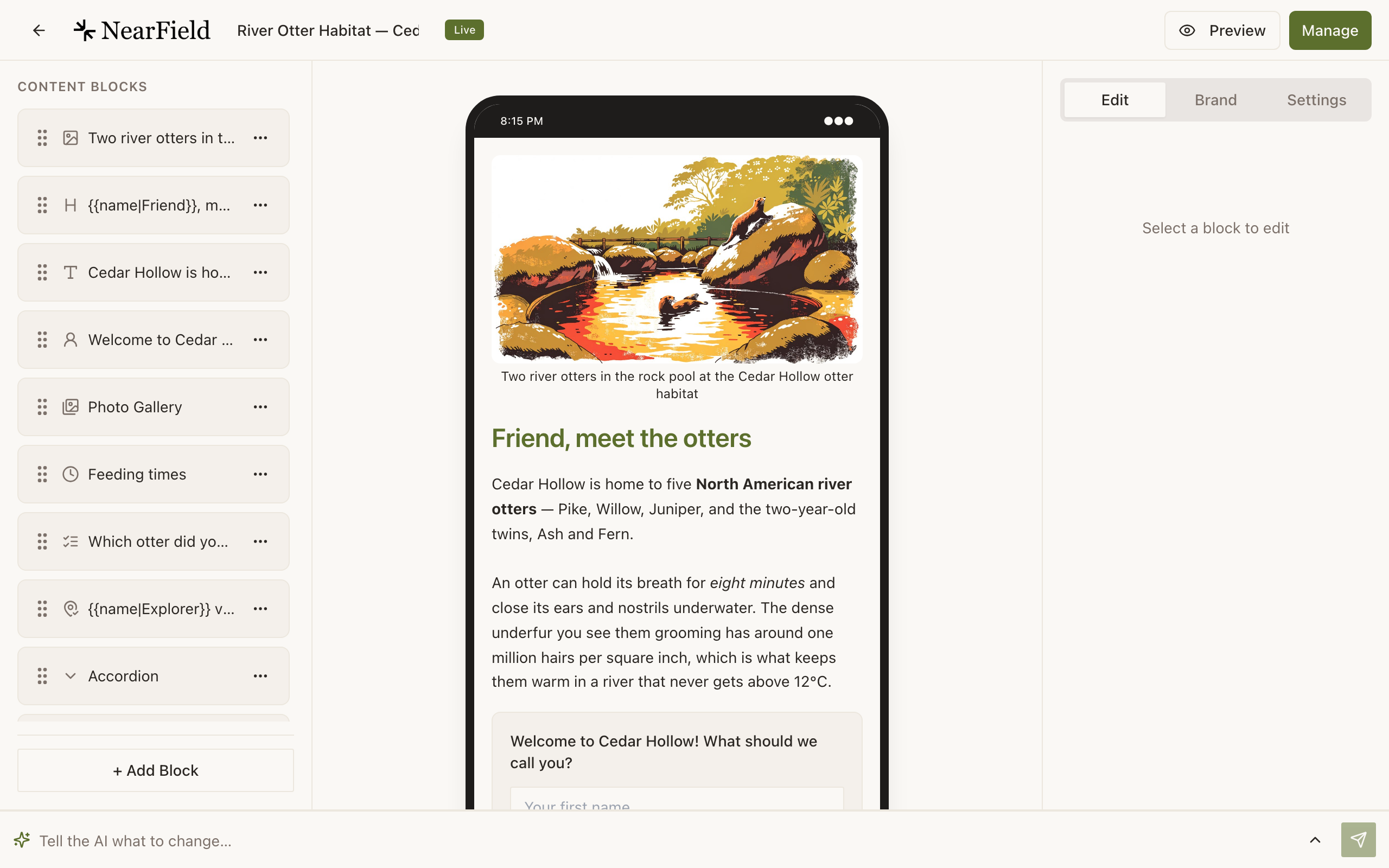
- Left: Content Blocks
- Every block in the Experience, in the order they appear on the page. Drag to reorder, click to select. A full-width + Add Block button is pinned at the bottom.
- Middle: the live preview
- A 390-pixel phone frame running the real renderer with your real theme. Not a mock-up: this is the same code a visitor gets. Blocks in it are clickable, which is often the fastest way to select the one you mean.
- Right: Edit, Brand, Settings
- Three tabs. Edit holds the selected block's fields, Brand holds colour, and Settings holds everything about the Experience as a whole.
Live example · The Bellhaven Hotel
Open full sizeThe top bar
On the left: a back arrow that saves anything pending before it leaves, the Experience name (click it to rename: the name is internal), and a badge reading Live or Draft.
On the right: Preview, and then either Publish if the Experience is still a draft or Manage if it is already live. A Keep all AI drafts button appears here when AI has written blocks you have not reviewed.
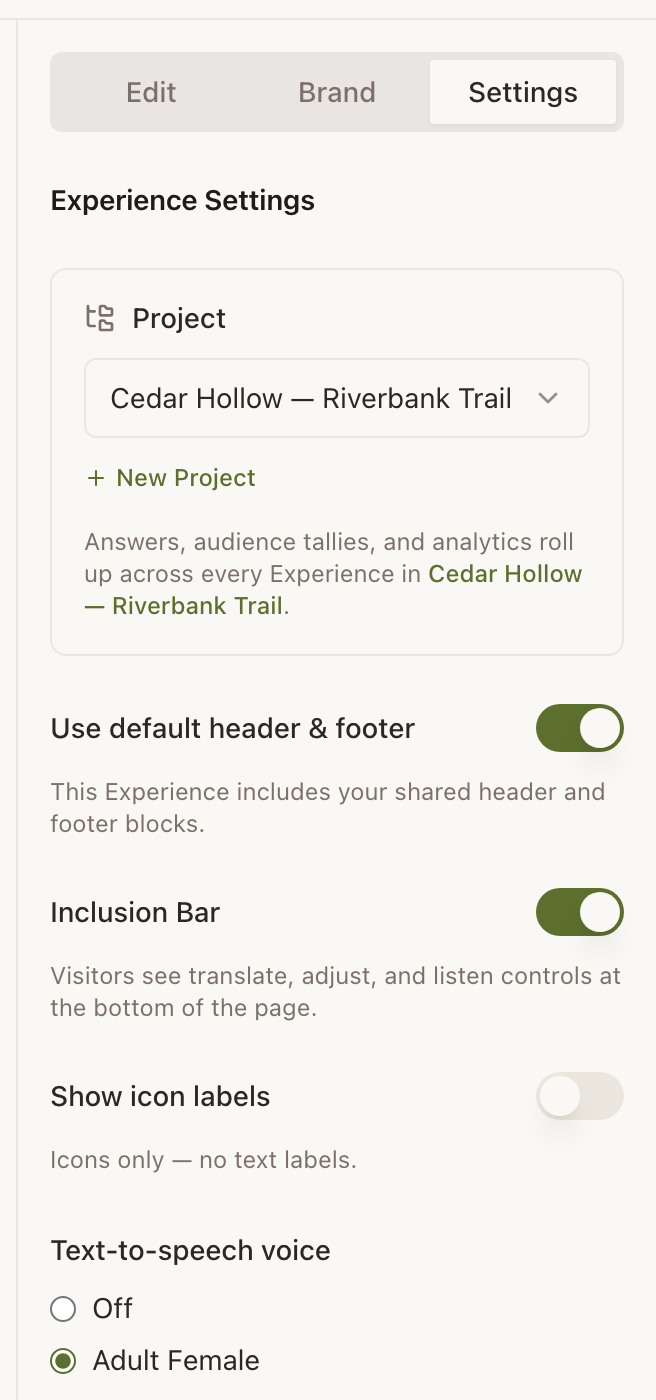
The Settings tab
Everything that applies to the whole page rather than to one block:
- Project: which group this Experience belongs to. Unassigned Experiences cannot share answers or roll up in Stats.
- Use default header and footer: whether your account's shared blocks wrap this page.
- Inclusion Bar: on or off, and whether the icons carry text labels.
- Text-to-speech voice: off, or one of four voices.
- Require PIN to view. See locking an Experience with a PIN.
On a phone
The builder inverts: the preview fills the screen, and two floating buttons sit bottom-right. Content blocks opens the block list as a bottom sheet; tapping a block hands off to a second sheet for editing it. Ask AI opens the chat. The two sheets never stack, so there is always exactly one thing to close.
The three AI surfaces
| Surface | When it appears | What it does |
|---|---|---|
| Quick Start | On a new Experience, or with ?scaffold=1 in the address | Takes a web address or a description and streams a first draft of blocks in. |
| Ask AI | Any time, from the chat dock or the floating button | Proposes a set of edits you review before applying. Applied edits can be undone. |
| AI draft badges | On blocks the AI wrote | Keep or regenerate a single block, with the source excerpt it worked from. |
Ask AI adds Actions as well as blocks. Ask for Guest Wi-Fi, a call button, directions, Save Contact, a review request, a Request or Lead Capture and it adds the real Action, filled in with whatever details you gave it. Donate, Pay, Waiver and the two Enterprise Actions are added from the picker instead.
Quick Start and Ask AI only add blocks your account can build with. On a free account that is everything up to Growth, the same as the picker.
Saving
There is no save button. Edits are written continuously, flushed when you close a sheet, when you navigate back, and before the tab closes. If you somehow manage to leave with work in flight the browser will warn you.
What the builder will not open
A Redirect has no blocks, so opening one takes you to a small panel holding its destination and its link instead of the three columns. That is expected, not a failure. See Experience, Action or Redirect.
Why does the preview not match what I see on my phone?
Almost always a font-size or scroll-length difference, not a rendering one. Use the Preview button's QR code to open the actual draft on the actual phone.
Where did the Customise page go?
There is no separate customise surface. Colours are on the Brand tab in the builder, and your shared header and footer live in Account.
Can two people edit the same Experience?
There are no team seats or shared logins in NearField, so an account is one person's. Two browsers signed into the same account will overwrite each other's edits.