Guide · Restaurants
What is an NFC menu: and why are restaurants switching to them?
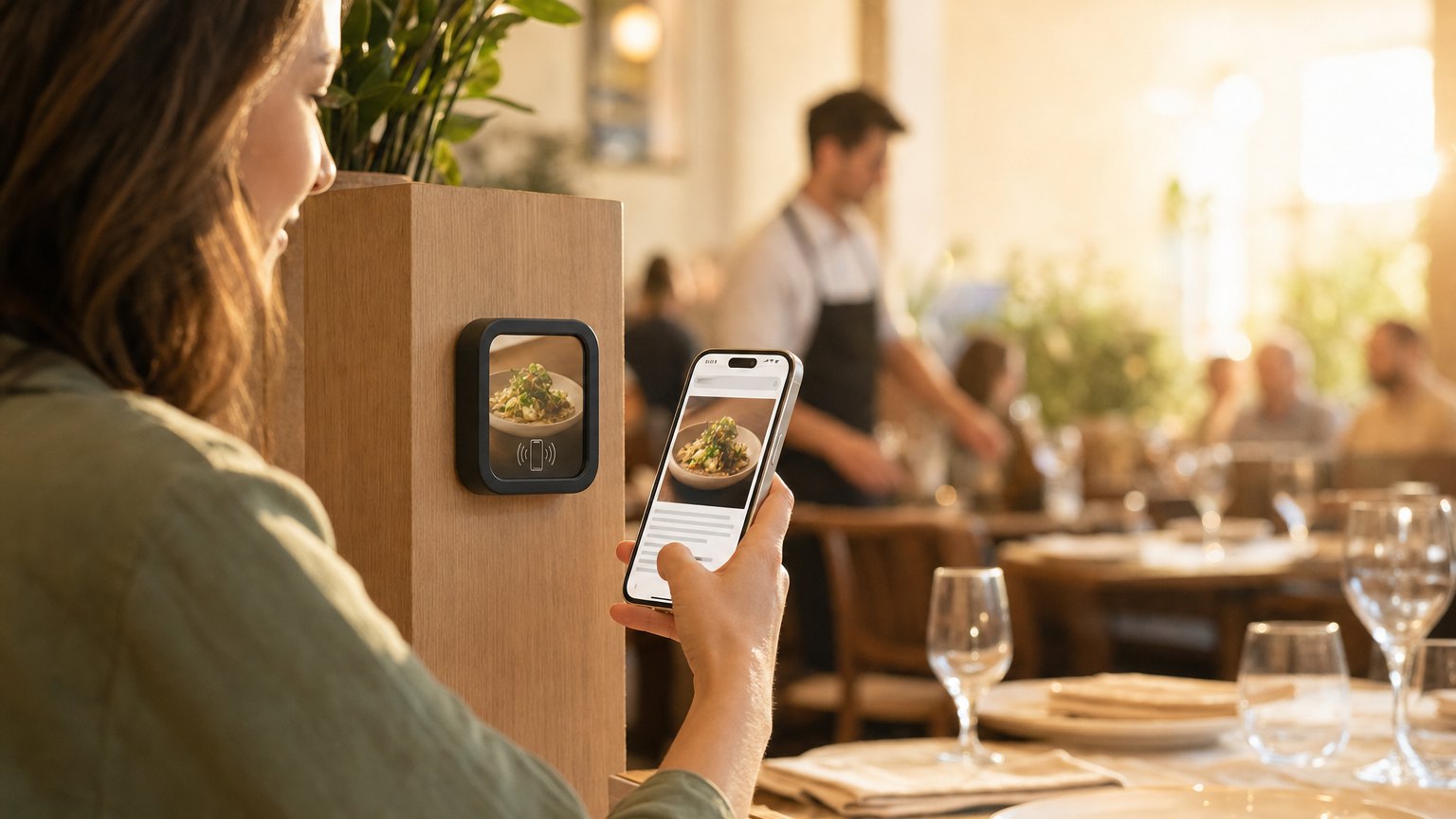
A small Marker on each table. A guest taps it with their phone. Your menu opens instantly: no app, no scanning a sticker, no waiting for the server to bring a laminated card. That's an NFC menu, and it's simpler than it sounds.
What NFC actually is (and what it isn't)
NFC stands for Near Field Communication. It's the same technology your phone uses for tap-to-pay. Every iPhone since 2018 and most Android phones manufactured in the last five years can read an NFC tag without downloading anything. The guest just holds their phone near the Marker and the browser opens.
NFC isn't a QR code. You don't have to point a camera at it. You don't need good lighting. You don't have to hold steady. The guest just taps, and it works. Most people who have never seen NFC before figure it out on the first try.
How the Marker gets onto the table
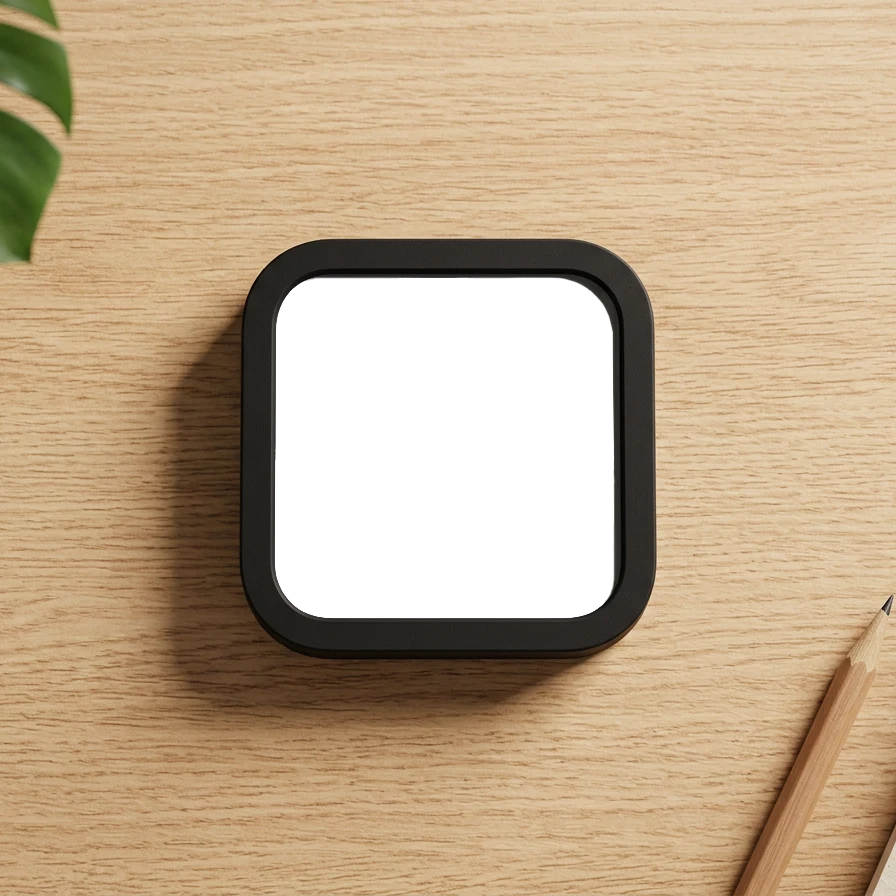
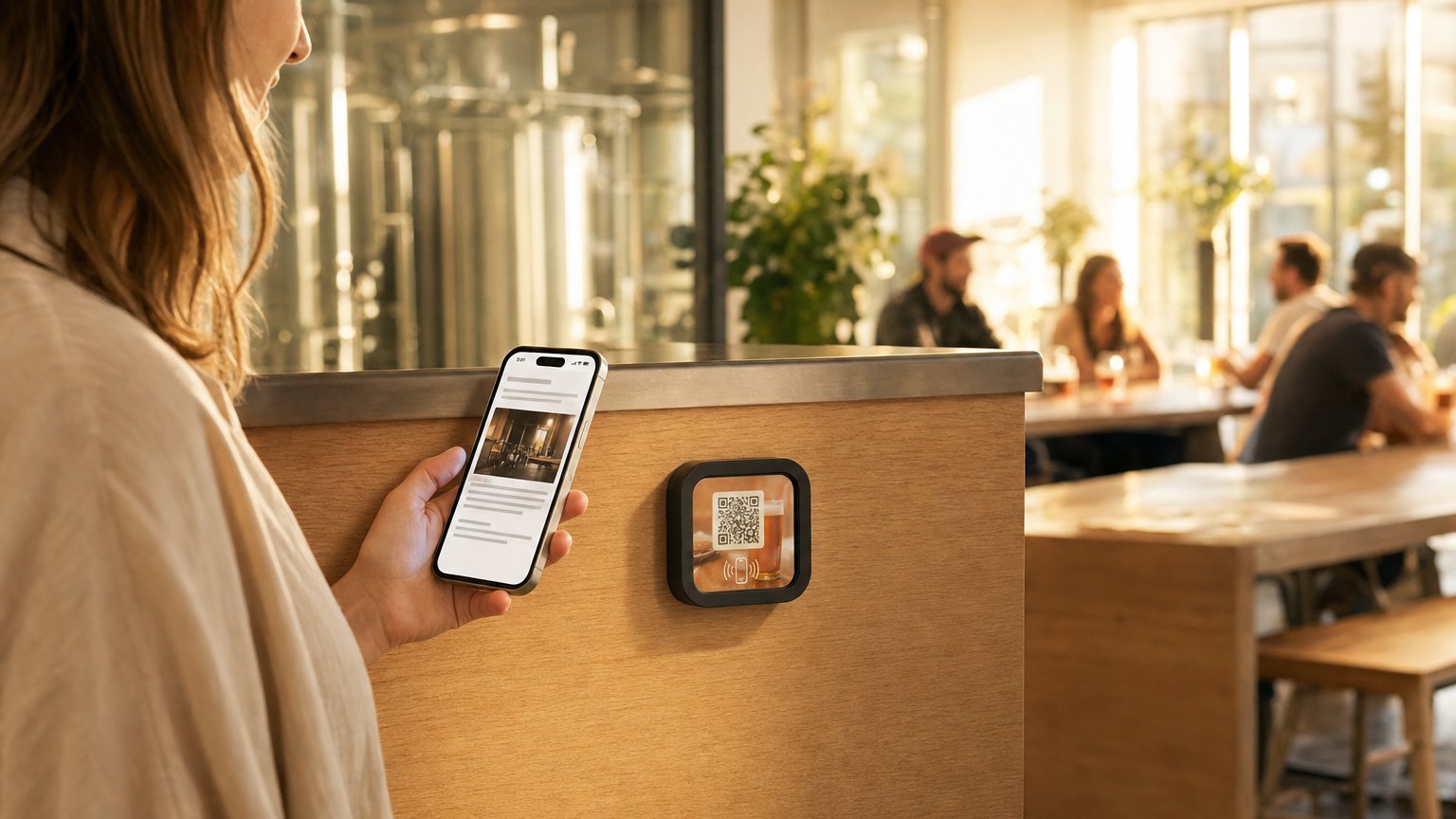
A NearField Marker is three inches square, with your branding printed on it. You put one on each table the same way you'd put out a tent card. They can sit loose, slot into a small stand, or mount flush to the table surface. The Marker itself contains a tiny NFC chip and a printed QR code as a fallback for phones that don't support NFC.
One Marker per table is the standard setup. A full dining room of 30 tables takes about an hour to set up, including building the Experience and registering the Markers in your dashboard.
What to put on it
Your menu Marker isn't just a PDF of the menu. It's a small hosted page that you build and control. A good restaurant Experience typically includes:
- •The current menu. Link to your existing menu PDF or embed a text menu. Change it any time from your dashboard without touching the Markers.
- •Daily specials. A text block you update each morning. Cheaper and faster than a chalkboard you have to re-photograph.
- •A one-tap review link. A button at the bottom of the Experience that goes straight to your Google review page. The timing is right: the guest is at the table, just finished eating, and tapped the Marker. That's the moment to ask.
- •Wine or cocktail info. A short description of your house wines, a cocktail list, or tasting notes for a featured bottle. Guests browse while they wait.
- •Dietary flags. A short accordion section with the gluten-free options, vegan dishes, or allergen notes. Takes the pressure off the server to memorize every substitution.
How it compares to QR stickers and printed menus
| Feature | Printed menu | QR sticker | NFC Marker |
|---|---|---|---|
| Updates | Reprint every time | If linked to editable page | Change in your dashboard, live immediately |
| Cost per update | Print cost | Free if hosted | Free |
| Review prompts | No | Possible, awkward | Yes, one tap at end of meal |
| Visitor data | None | Click counts | Taps, repeat visitors, email capture |
| Works without camera | Yes | No | Yes: tap, no camera needed |
Ready to try it?
Build a restaurant Experience in minutes, with nothing for guests to download. No card needed to build. Your 14-day trial starts when your page goes live.
Start with the restaurant templateWhat happens when the menu changes
This is the part that surprises people. The Markers on your tables don't change, they're just a link. When you update the Experience in your dashboard, every Marker that points to it shows the new content immediately. You can update daily specials each morning in two minutes. You can swap the wine list seasonally. You can add a new dish the hour after the kitchen perfects it.
No new Markers. No new stickers. No re-laminating anything. The Marker stays, the content changes.
The Google review angle
The most consistent outcome we see at restaurants is a meaningful increase in Google reviews. The reason is timing. A guest who had a great meal and is sitting at the table is more likely to leave a review than the same guest who gets a follow-up email three days later. The Marker is there at the moment it matters.
One button at the bottom of the Experience that links to your Google review page is all it takes. More reviews, better ranking, more covers.
How to set one up with NearField
- 1Sign up free and pick the Restaurant template. It comes pre-loaded with a menu section, specials, and a review button.
- 2Swap in your own content: menu link, daily specials text, your Google review URL.
- 3Publish the Experience. Order Markers (a single Marker to try it, or a 3-pack for a few tables).
- 4When your Markers arrive, register each one in your dashboard and link it to your Experience. Put them on the tables.
- 5Watch your dashboard. The first time a guest taps, you'll see it. When you start seeing repeat visitors, that's the signal to think about what you'd show them on their second visit.
Start with an Action
A menu Marker is the obvious start. These three are what a table tent is actually for.
File
The current menu, updated without reprinting a thing.
Try the live demoGuest Wi-Fi
The other question every table asks.
Try the live demoReview & Feedback
A Google review link, plus a private line to you.
Try the live demoEach one goes live in under a minute, and any Action converts into the full Experience described here in one tap, and the same link and Markers keep working. See all 17 Actions.
Ready to build?
Start with the restaurant table template
The restaurant template is pre-loaded with a menu section, daily specials, a wine list, and a one-tap Google review button. Build it in minutes, order a Marker when you're ready.