The group note in the picker sets the expectation: answers are saved to the visitor's profile and carry across your whole space. Nine of these fourteen carry the Memory marker, four carry the Action marker, and one, the Feedback Form, is a plain embed that carries neither.
One block is free, four need Starter, and nine need Growth.
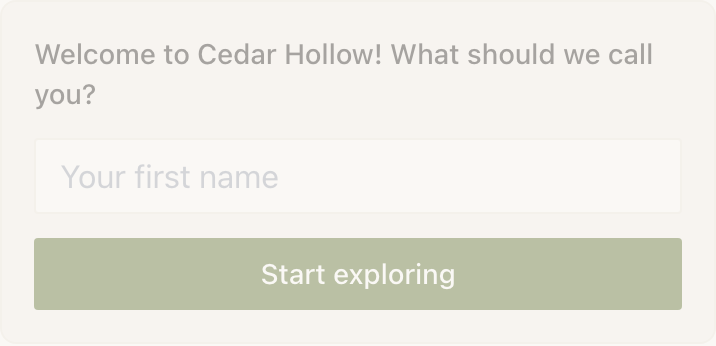
Asking who somebody is
- Name CaptureStarter
- Asks a visitor's name and keeps it. Fields: a prompt, a placeholder, a button label, a Greeting template for what they see afterwards, an Answer name and Where this is remembered. The name defaults to being remembered everywhere, which is what lets one Marker greet somebody the rest of the building already knows.
- Email CaptureStarter
- Collects an email address. Same shape as Name Capture, plus Also collect a name with its own prompt. Email addresses are treated as personal data and masked by default in your Audience.
- Phone CaptureStarter
- Collects a phone number, with a country picker. Identical to Email Capture in every other respect.
- Lead CaptureStarter
- The classic trade: contact details for something worth having. Fields: a prompt, which details to ask for, Consent text (optional), a button label, a thank-you message, an optional file to deliver, Send it by (email, text or both), Send it as, and the repeat controls One submission per person, Match repeat visitors by and Message for repeat visitors.
Asking what somebody thinks
- Quick ChoiceGrowth
- A multiple-choice question that saves the answer. Fields: the question, the options, Allow multiple selections with a Max selections, an Answer name and a scope. This is the block that feeds show-and-hide rules, because its answers are a known, short list.
- RatingGrowth
- Stars, thumbs or NPS. Fields: Rating type, a prompt, and a comment placeholder. It also has its own notification rule: every rating, or only the low ones, with a threshold that defaults sensibly per scale.
- Review & FeedbackGrowth
- A Google review link plus a private path. Fields: a heading, Google Place ID or a full review URL, and Offer a private feedback box. Everybody sees the review link and everybody can also tell you something privately.
- Feedback FormFree
- Embeds a Google Form. Field: Google Form embed URL. The one free block in this group, and the only one whose answers land in Google rather than in your Audience.
Example
Marigold & Vine: the table Marker after service
The restaurant wants to hear about a bad meal that night rather than reading about it online on Tuesday.
- Rating, set to stars, prompt: How was everything.
- In the When someone answers panel, Notify me about is set to only low scores with a threshold of 3 stars or below.
- Underneath, Review & Feedback with the restaurant's Google Place ID and the private feedback box on.
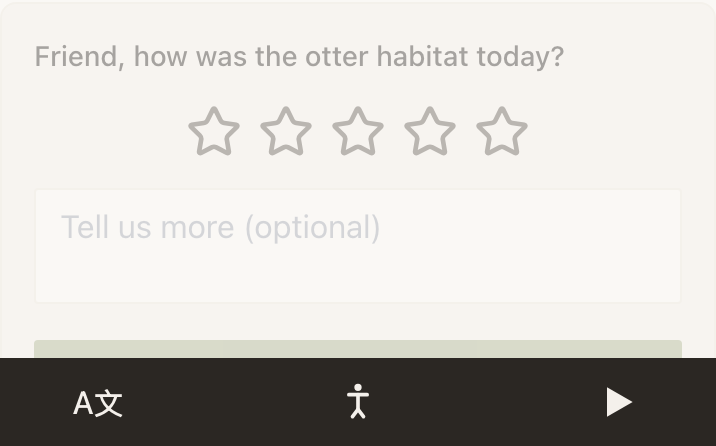
A three-star rating reaches the manager's phone while the guest is still paying. The review link is there for everybody, which is both the honest way to do it and the only way Google permits.
Asking where somebody is
- Check-InGrowth
- Timestamps that a visitor was here. Fields: Button label and Auto check-in on page load. With auto on, arriving at the page is the check-in; with it off, they press a button.
- Geo Check-InGrowth
- Verifies a visitor is actually at a place. Fields: a location search with a display name, a radius in feet or metres, success and failure copy, and a scope. It asks the phone for its position, so the visitor sees a permission prompt.
Check-In trusts the tap. Geo Check-In trusts the satellites. Use Check-In for anything where being at the Marker is proof enough: a trail stop, a shift start, a feeding log. Use Geo Check-In when somebody has a reason to claim they were somewhere they were not.
Asking for one specific value
Custom Input captures any single value: a room number, a table, a membership ID, a vehicle registration. Fields: a label, an Answer name, an Input type (Text, Number or Dropdown), Dropdown options when the type calls for it, a placeholder, and a scope.
The Answer name is the one field worth naming carefully. It is what you pick from the answer picker when writing copy, and what a show-and-hide rule compares against. Call it room, not Custom Input 3.
Example
The Bellhaven Hotel: asking for the room number once
Room service, housekeeping and the spa all need to know which room they are talking to, and nobody wants to be asked three times.
- One Custom Input on the in-room Experience, labelled Your room number, answer name
room, input type number, scope set to Everywhere. - Every other Experience in the building writes
{{room|your room}}into its copy instead of asking again. - The Request block on the housekeeping Marker fills its reference from the same answer.
The scope setting is what makes this work. Left on its default, the answer would only be readable by the Experience that asked for it.
Asking a set of questions
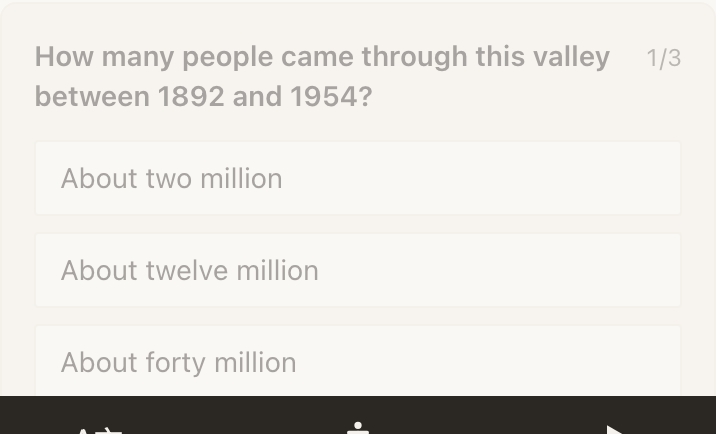
Quiz is scored questions with a reveal at the end. Fields: a title, the questions, Reveal for good scores (optional) and Show it at a score of at least. The reveal is the reason to use it: a fact, a code, a next stop that only appears for somebody who paid attention.
Example
Harbour Point Aquarium: the school-group trail
Year 5 groups walk the tunnel with a worksheet. The worksheet gets wet.
One Quiz on the tunnel Marker with five questions drawn from the labels along the walk, a threshold of four, and a reveal reading: the ray at the far end is called Marbles, and she is nineteen years old. Nothing in the reveal is on any label, so the only way to it is the walk.
Getting something signed, and getting something sent
- WaiverGrowth
- Read, type a name, agree. Fields: a title, the agreement text, a button label, and the scope checkbox Signed once, valid across your whole space. Each acceptance records the typed name, the time, and a fingerprint of the exact text agreed to, so a later edit never blurs what somebody signed. It is a consent record, not a notarised signature.
- RequestGrowth
- Towels, valet, a test drive: routed to staff. Fields: a heading, How should requests reach you?, What can they ask for? and Ask for a room or table number. Straight to me (the default) sends each request to the NearField app and your email. Visitor texts me and Visitor emails me open the visitor's own messaging or mail app with the request written out, addressed to the number or address you give.
What happens after somebody answers
Below every block that collects an answer, the builder shows the same When someone answers panel. It is one panel rather than a setting buried in eleven different editors, and everything in it is off by default.
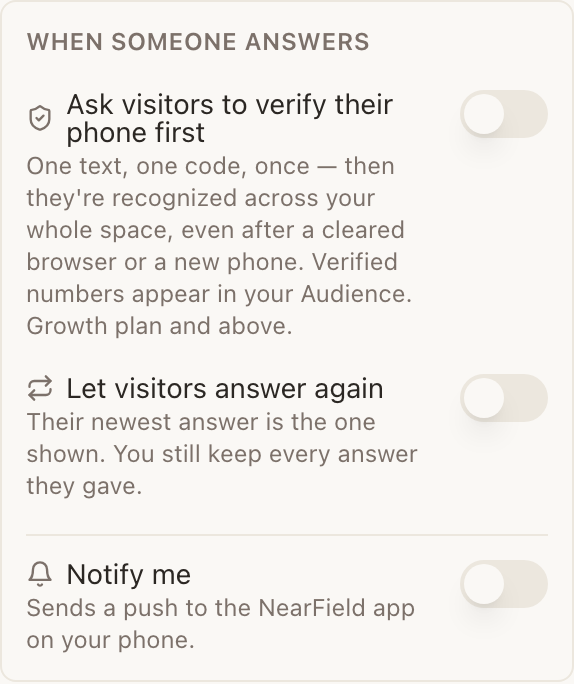
- Ask visitors to verify their phone firstGrowth
- One text, one code, once, and from then on they are recognised across your whole space, even after a cleared browser or a new phone. Available on Custom Input, Rating, Quick Choice, Check-In, Geo Check-In, Passport, Quiz and Waiver, plus several Actions. Enforced from Growth up.
- Let visitors answer again
- Their newest answer is the one shown, and you keep every answer they gave. Available on Custom Input, Rating, Quick Choice, Check-In and Quiz. The contact-capture blocks are deliberately absent: an email address is identity rather than an answer.
- Show them their history
- Nested under repeat answers. Visitors can open a list of their own past answers with relative times (two hours ago, three days ago) which is what somebody wants when checking whether they already answered today.
- Start blank each visit
- Also nested under repeat answers. The block presents empty on every visit instead of showing the last answer. Built for pages visited many times a day: a shift check-in, a feeding tracker, a room-service card. Past answers stay saved either way.
- Notify me
- Sends a push to the NearField app on your phone. Available on most answer blocks; Rating adds its own rule so you can hear about only the low scores. Lead Capture and Request show this inside their own editors as a delivery channel instead.
Where the answers land
- Audience: every answer as a row, attributed to a visitor and to the Marker that captured it.
- Stats: taps, completions and conversion for each Action.
- Your phone: a push, if the block is set to notify.
- The page itself: any block can read an answer back into its copy, and Conditional can hide or show a whole section because of one.
What each of these needs
| Plan | Blocks in this group |
|---|---|
| Free | Feedback Form |
| Starter | Name Capture, Email Capture, Phone Capture, Lead Capture |
| Growth | Quick Choice, Rating, Review & Feedback, Custom Input, Check-In, Geo Check-In, Request, Waiver, Quiz |
Do visitors have to create an account to answer a question?
No. Answers are stored against a token on the visitor's own device, scoped to your account. Nothing is installed and nothing is signed into. Phone verification is optional, and only exists so somebody is still recognised after a new phone or a cleared browser.
Can a visitor delete what I know about them?
Yes. A visitor can clear their own record, and you can delete any record from your Audience in one click. Personal fields are masked in Audience by default, and you can export your data whenever you like.
Why can I not turn on repeat answers for Email Capture?
Because a second email address is a correction, not a second answer, and the block already has an undo affordance for that. Repeat answers exist for values that legitimately change: a rating, a room number, today's check-in.
What is the difference between the Feedback Form and Review & Feedback?
The Feedback Form embeds a Google Form, so the responses live in Google and never reach your Audience or your notifications. Review & Feedback keeps the private note inside NearField, attributes it to a visitor, and can push it to your phone. The Feedback Form is free; Review & Feedback needs Growth.