Where to find it
The same studio appears in three places, and a design you start in one can be finished in another.
| Where | What it is for |
|---|---|
| The Marker designer | The full studio, open to anyone. No account needed to design or preview. |
| Markers → Order Markers | The same studio inside the three-step order wizard, with your account attached. |
| A design page in the Shop | A compact version for adjusting one ready-made design before you buy it. |
The two modes
The first choice in the studio is between Tap or scan and Scan to open. Both kinds have an NFC chip inside; the difference is how much of the face the QR code takes and what the visitor is being told to do. QR-first or NFC-first covers how to choose.
What you can change
- Background
- Twelve artwork fields (the fluted-glass looks our shop Markers print on), plus eight solid colours and eight featured gradients. More options opens hex entry, a colour wheel, a linear angle slider and a library of fifty-two gradients grouped by mood.
- Icon
- One of twenty-five, or none. The default is a map pin. Icons are line drawings and read from further away than words do.
- Headline
- Up to forty characters. The counter reminds you that short lines read best from across a room, and it is right: four words is usually the ceiling.
- Where it sits
- A three-by-three grid placing the icon and headline anywhere on the face. Centre is the default; bottom-centre suits a face that will sit under a rail lip.
- Ink
- Light or dark. Pick for contrast against the background, not for brand. An unreadable face is not on brand either.
- Ready-made looks
- Six starting points: Minimal, Bold, Branded, Directional, Bilingual and Icon Only. Bilingual sets up an English and Spanish line, which is worth considering anywhere your signage already runs two languages.
- Your logo
- PNG, JPG or SVG up to 4MB, with a position, a size and a backdrop. The backdrop matters on busy artwork: Solid puts opaque white behind the mark, Soft a translucent wash, None sits it straight on the design.
- The QR code
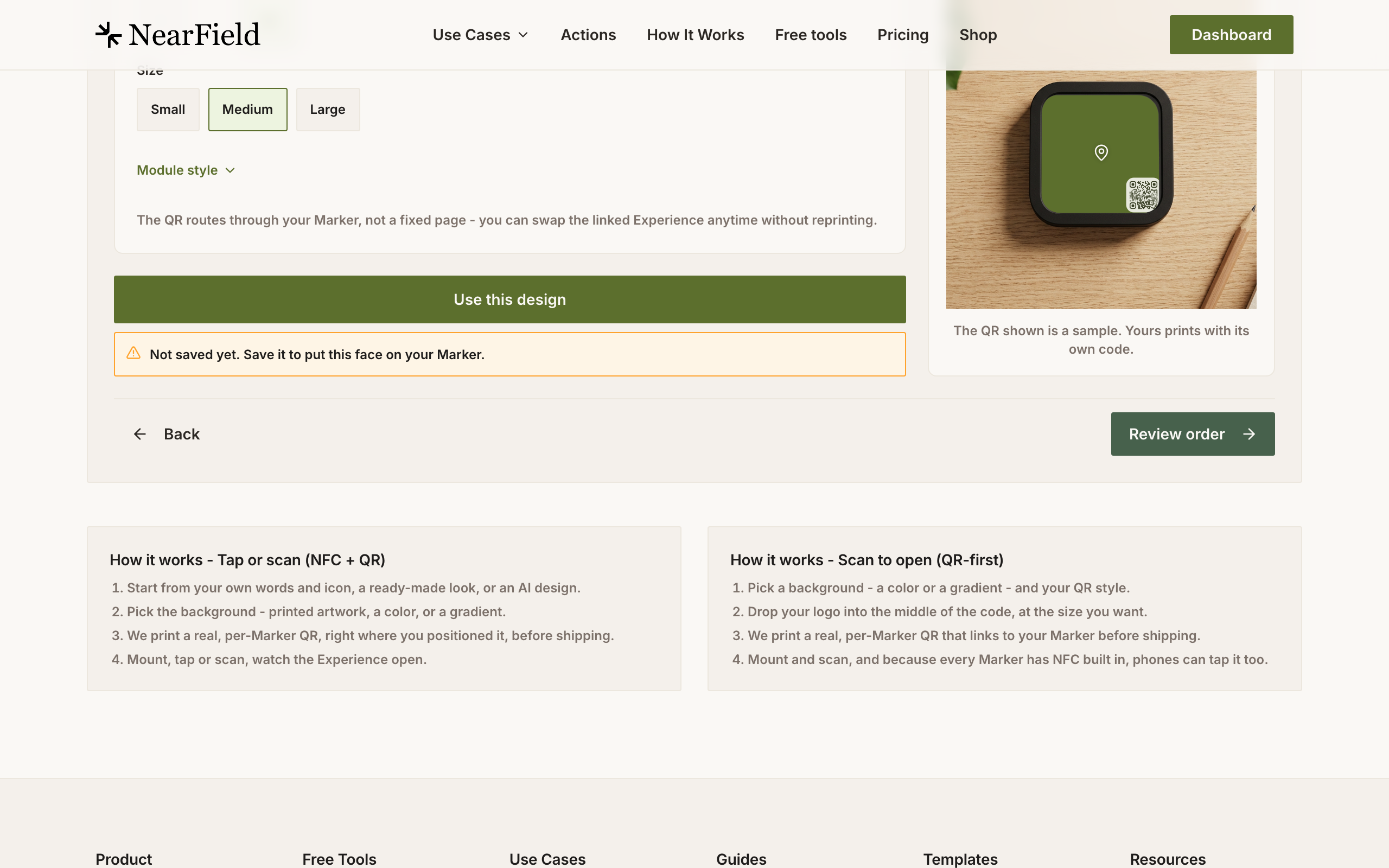
- On or off, five positions, three sizes, and rounded or classic modules. Rounded is the NearField house style and scans identically.
The three ways to make a face
- 1
Text and icon.
Pick a background, choose an icon, write a headline, place it. This is the path most Markers take and the only one that gives you every control.
- 2
AI design.
Describe the look you want in up to two hundred characters, add a short caption, and let the studio generate artwork. Signed-in free accounts get twenty generations per day, anonymous visitors get three, and paid accounts are uncapped.
- 3
Upload.
Bring your own square artwork as PNG, JPEG or WebP up to 10MB. Anything that is not square opens a crop tool so you decide what gets lost rather than us.
Example
Ridgewood Museum of Natural History
Ridgewood uses one face across the whole building: the Fluted Mono background, dark ink, the museum's mark bottom-left on a soft backdrop, the headline Hear the story bottom-centre, and a medium QR bottom-right. Every gallery gets the same Marker, so a visitor who learns it in the first room recognises it in the eleventh. The Experiences behind them are all different.
What comes out of it
There is no file to download. The studio composes a high-resolution master for each Marker and sends it to print with that Marker's own code baked into the design. That is why the preview shows a real QR rather than a placeholder: the module density you see is the density that gets printed.
Do I need a paid plan to design a Marker?
No. You can design and preview signed out, and checkout does not check your plan. A signed-out designer shows a note about custom Markers shipping with paid plans; the checkout itself does not enforce it.
Can I change a Marker's face after it is printed?
No. The face is physical. What you can change without limit is what the Marker opens, which is the part that usually needs changing.
Can every Marker in one order look different?
Yes. When you order more than one, a Design plan control offers one design for all of them or a unique design per Marker, with a chip strip to move between them and a Copy design 1 to all shortcut.
Is there a print-ready file I can send to my own printer?
No. Markers are printed and paired by us, because the code on the face has to match the chip inside. If you have artwork you want on a Marker, bring it in through the Upload path.