Try the printed QR code on the same Marker first. If the QR opens your page, the Marker and the Experience are both fine and you have an NFC problem on one phone. If the QR does nothing either, jump to Check the Marker.
What a tap is actually doing
What a tap does
A phone touches the Marker
Or the camera reads its QR code. No app, no account, nothing to install.
The Marker's own address opens
/m/{marker}?src=nfc
This never changes. It is printed into the chip and the code at the factory.
NearField looks up what it points at
This is the part you control, and the part you can change at any time.
Your Experience renders
/view/{experience}
Counted as a visit, with the tap or scan recorded against that Marker.
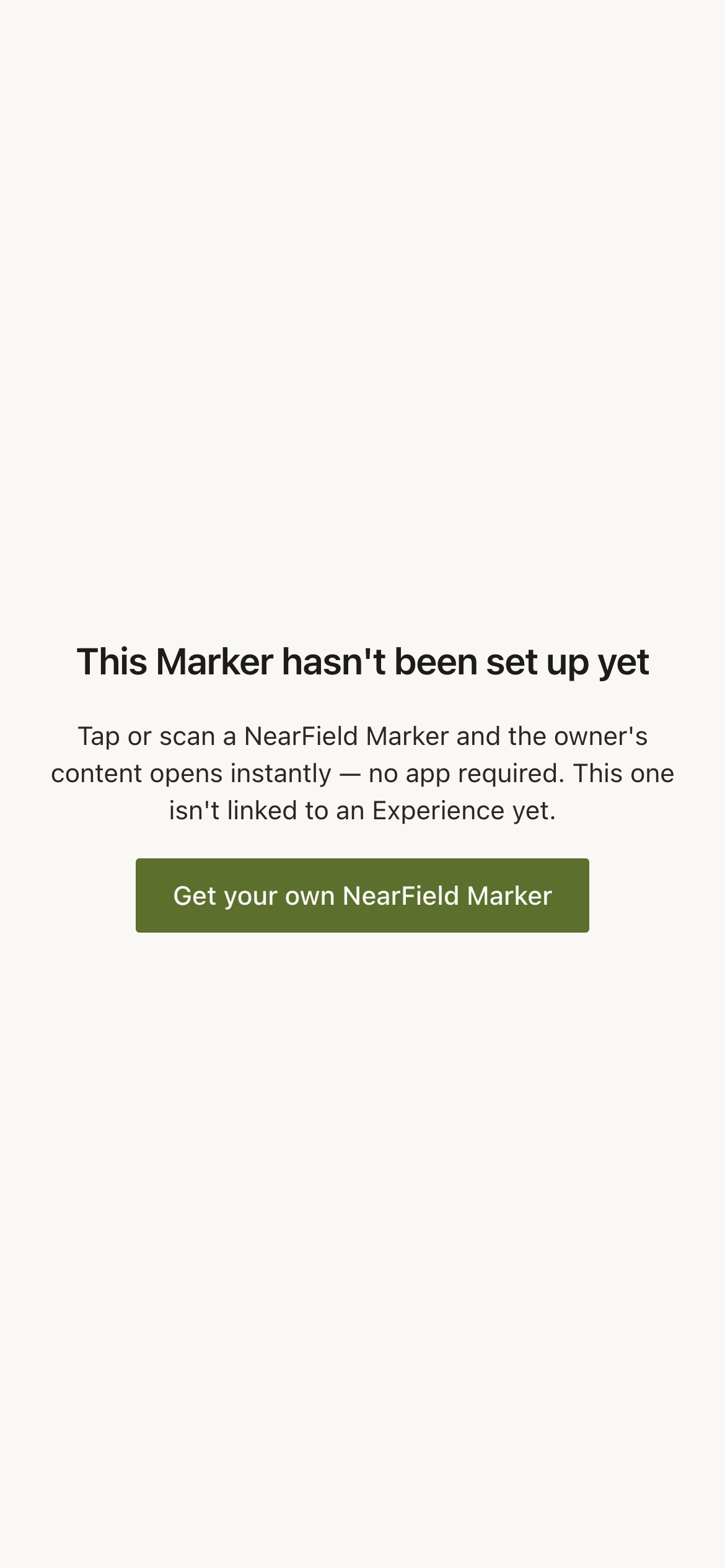
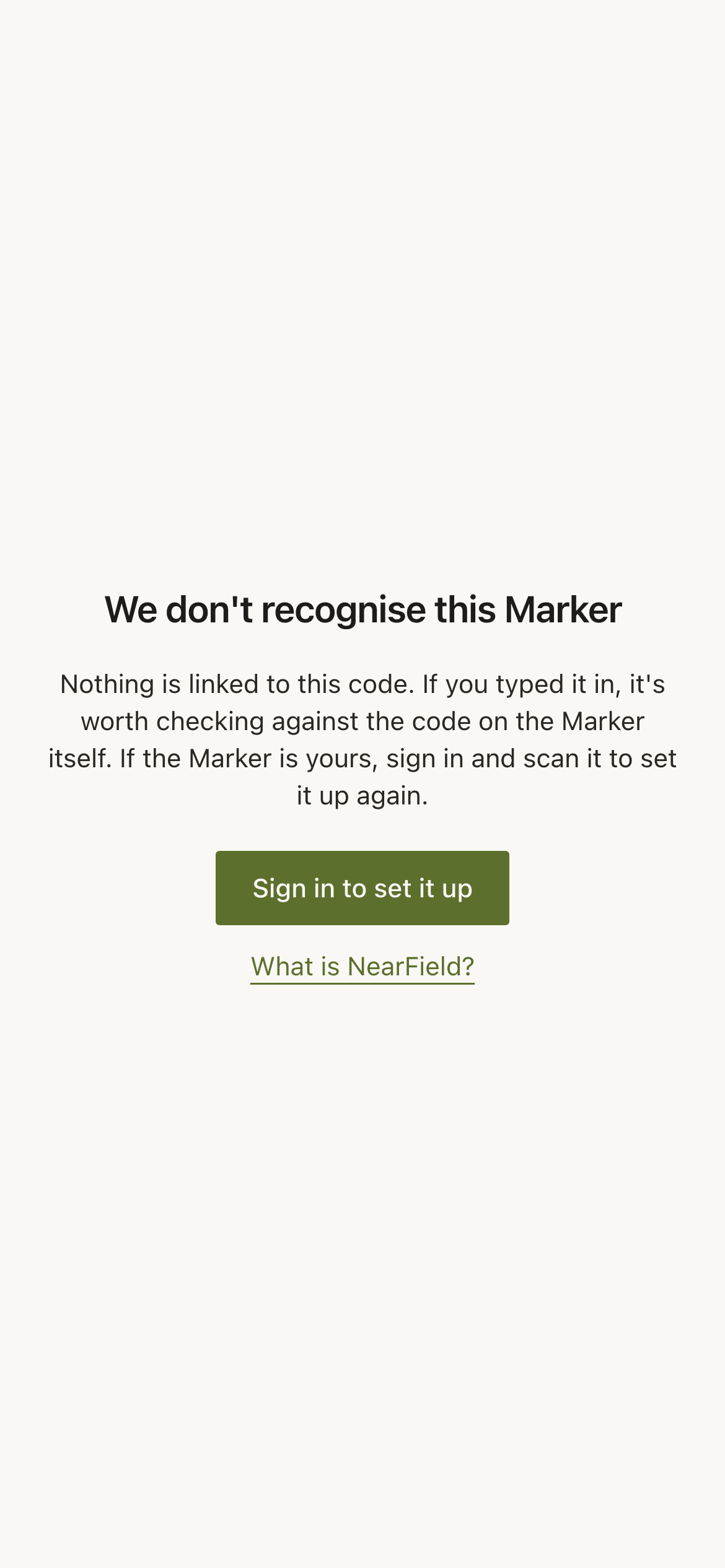
Ask whoever tapped it what they saw. Nothing at all means the phone never read the tag, so the problem is the phone or the mounting. A NearField page reading This Marker hasn't been set up yet means the tag read perfectly and is pointed at nothing. We don't recognise this Marker means the code read is not one of ours.
Check the phone
- 1
Confirm the phone can read tags at all
iPhone 7 and newer, and most Android phones from 2018 onward, read Markers with no app. An iPhone 6s or older has no NFC reader and needs the QR code.
- 2
Wake and unlock the screen
A locked or sleeping phone will not read a tag. This is the single most common cause of a tap that appears to do nothing.
- 3
Turn NFC on
Android keeps it in Settings, usually under Connected devices or Connections. iPhones have no switch: it is always on.
- 4
Hold the right part of the phone against the Marker
On an iPhone the antenna is at the top edge of the back, behind the camera. On most Android phones it is the middle of the back. Aiming the bottom of the phone at the Marker is why most failed taps fail.
- 5
Hold still for two seconds
Do not sweep the phone past the Marker. Rest it against the NearField mark and wait for the banner to drop down.
- 6
Take the case off and try again
A thin case is fine. A case with a metal plate for a magnetic car mount, a MagSafe wallet, or a card slot with cards in it will block the read completely.
Check the Marker
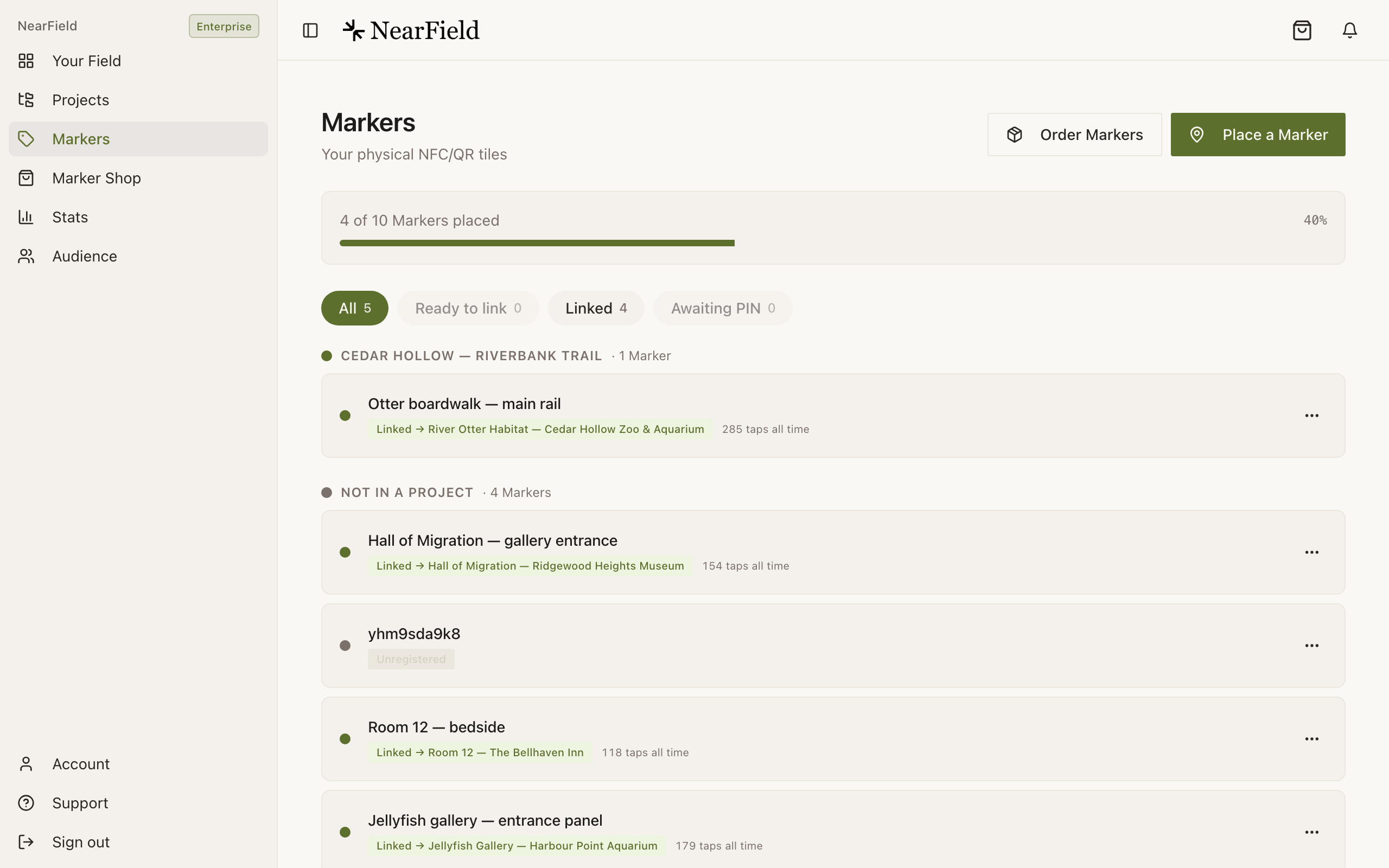
Open Markers in your dashboard and find the Marker. Its status pill tells you which hop is broken.
| Status pill | What it means | What to do |
|---|---|---|
| Awaiting PIN entry | The Marker shipped to you but has never been activated. | Press Place a Marker and enter the six-character PIN printed on the back. |
| Unplaced: ready to link | Yours and activated, but pointing at nothing. Visitors get a NearField page instead of yours. | Open the row's actions menu and choose Relink. |
| Linked | It should be opening an Experience right now. | Move on to the next section. |
| Unregistered | We do not have this Marker on your account. | Get in touch and we will move it across. |
Check the Experience
- 1
Open the Experience and read the badge beside its name
Live or Draft. A Marker pointed at a draft has nothing to open, and the visitor gets a short 'not available' page.
- 2
Publish it if it is still a draft
Press Publish, confirm on the Ready to go live? screen, and tap the Marker again. There is no delay.
- 3
Check whether the Experience is PIN-locked
In the builder's Settings tab, look at Require PIN to view. If it is on, visitors get a lock screen rather than your page. That surprises people who inherited an Experience from a colleague.
Check where it is mounted
NFC reads poorly through metal. A Marker on a steel door frame, a metal counter edge or foil-backed insulation can read on one phone and not the next.
- Peel the Marker off and hold it in the air. If it reads in your hand and not on the wall, the surface is the problem.
- Move it a few inches onto plaster, wood, glass or painted board.
- Test a spot before you commit to it, and keep placement consistent across a site so visitors learn where to look.
Example
Cedar Hollow Zoo & Aquarium: the otter deck
Two Markers stopped working the week the handrails were replaced, because both Markers had been moved onto the new steel posts. Putting them back on the timber sign frame six inches away fixed both, with no reprint and no relink.
If none of that worked
Send us the Marker's name or its six-character PIN, the phone model that failed, and what appeared on screen. Include the Support PIN from your Account page so we can verify the account without a lot of back and forth.
Does the visitor need the NearField app?
No. Nothing is installed on a visitor's phone at any point. The Experience opens in Safari or Chrome, whichever the phone already uses.
Why does the phone show a banner I have to tap before the page opens?
That confirmation step belongs to iOS and Android. A phone will never open a web page from a tag without its owner agreeing, and no setting removes it.
One Marker works and the one next to it does not. Same phone.
Then the phone is fine. Check the failing Marker's status pill in your dashboard. Usually it was never linked, or was disconnected and never pointed at anything again.
Can I replace a Marker that has stopped reading?
Yes. If a Marker does not work, we replace it. Send us the PIN from the back.
Still stuck? Send us the Marker PIN and what you saw, and we will trace it from our side.
Contact support