Open the public address, getnearfield.com/view/{hash}, in a private browser window on your own phone. That is the honest test. If your change is there, the page is fine and you are looking at a stale copy somewhere else.
Draft, published, and the address you are looking at
Draft, published, and back again
Draft
Who can see it
Only you, signed in
Address
/preview/{hash}
Every change is saved as you make it. Nothing here is reachable by a visitor, and a Marker pointed at a draft has nothing to open.
Published
Who can see it
Anyone with the link
Address
/view/{hash}
The public page. Edits you make afterwards go live the next time someone opens it. There is no second publish step for changes.
Unpublished again
Who can see it
Nobody
Address
None
The content stays exactly as you left it. Visitors get a short 'not available' page, and any Marker pointing here lands on the same.
The preview address and the public address are different pages. Copying the URL out of your browser while previewing gives a colleague a preview link, not the live page, and a preview link lasts an hour.
Work down this list
- 1
Check the badge beside the Experience name
Live means published. Draft means nobody outside your account has ever seen it, no matter how many edits you have made.
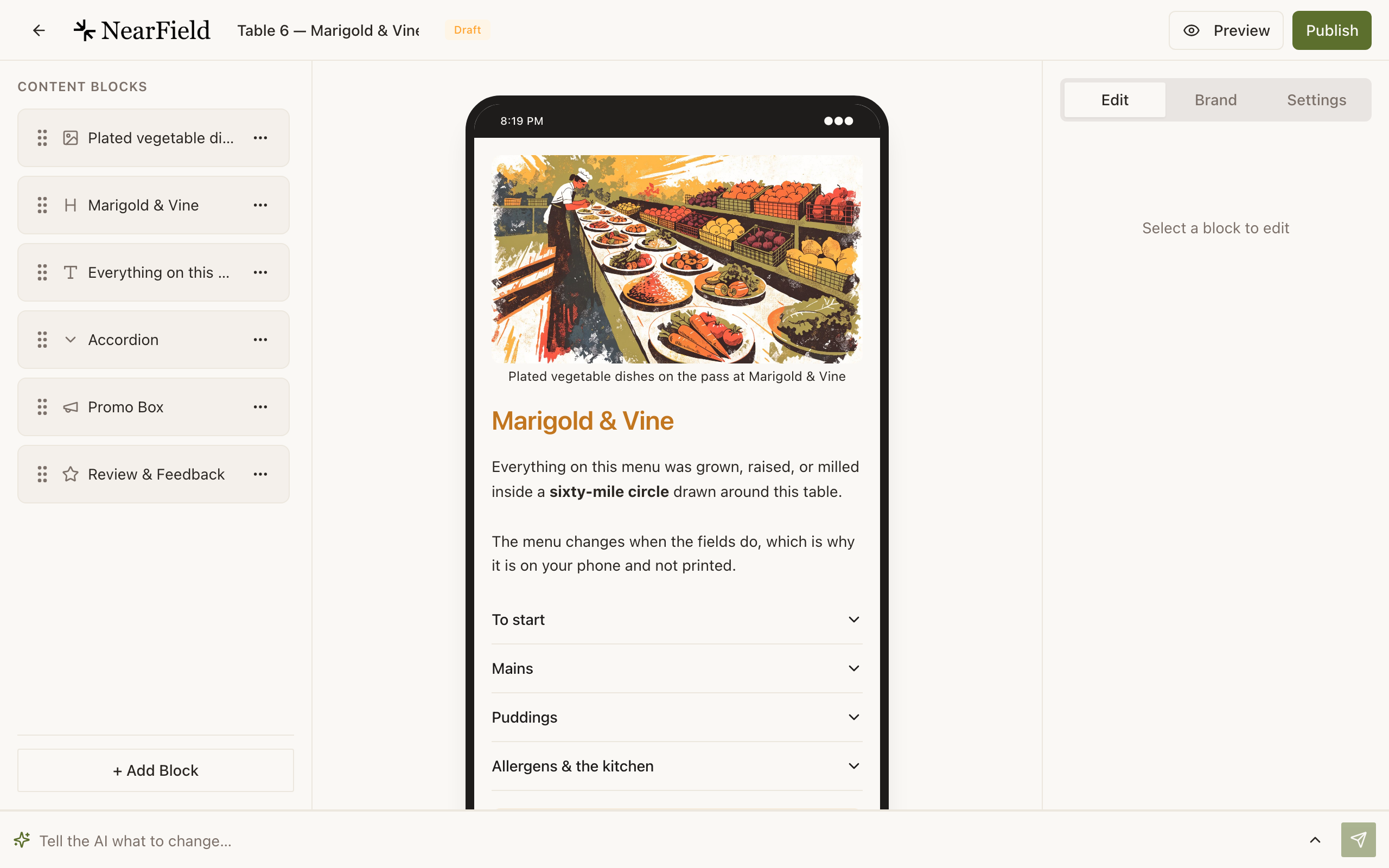
A finished-looking page can still be a draft. The badge beside the name is the only thing that settles it. - 2
Confirm you edited the Experience the Marker points at
Open Markers and read the row. Two similarly named drafts is a common trap when a site has a dozen Experiences.
- 3
Reload the visitor's page properly
A phone that has had the page open since yesterday is showing a restored tab. Close the tab entirely and tap the Marker again, rather than pulling to refresh.
- 4
Give the last edit a moment to save
The builder saves as you type, with a short delay. Closing the editing panel or pressing back flushes it. If you closed the browser mid-sentence and dismissed the warning, retype the last line and wait for the panel to settle.
- 5
Check the shared header and footer switch
Shared blocks are edited once on Account and appear on every Experience with Use default header & footer turned on in its Settings tab. If one Experience has that switched off, changes to the shared blocks will never show there.
- 6
Pull to refresh in the iOS app
The app opens with the last data it saw so it is useful with no signal. If your dashboard looks out of date on the phone, pull down on the list.
Translated pages
A visitor who has picked a language keeps that choice for the session, and some of the interface wording is held for that session too. If someone is checking your edit in Spanish, ask them to close the tab and reopen it. Content you changed is translated fresh on the next load.
The change you made was to a different thing
- Brand colours set on Account only reach an Experience that has Use brand defaults switched on in the builder's Brand tab.
- A Project change moves where answers and stats roll up. It does not change what a visitor sees.
- A Marker rename is internal. Visitors never see a Marker's name.
- Marker Studio artwork is the design you print. Changing it does not alter the Experience, and a Marker already on a wall keeps the face it was printed with.
Example
The Bellhaven Hotel: the new breakfast time
Reception updated the breakfast hours and guests kept seeing the old time. The hours block lived in the shared footer, and the room-directory Experience had Use default header & footer turned off during a redesign months earlier. Switching it back on published the change to all 112 rooms at once.
If none of that worked
Send us the Experience name, the change you made, and the address you are checking it at. Include the Support PIN from your Account page.
Do I have to publish again after every edit?
No. Publishing happens once. After that, edits are live as soon as they save.
How long does a change take to reach a Marker?
There is nothing to reach. The Marker carries an address, not your content, so the next tap fetches whatever the Experience says at that moment.
I unpublished an Experience by mistake. Did I lose the content?
No. Unpublishing hides the page and leaves every block exactly as it was. Publish again and it comes straight back.