A wall with twenty Markers on it is a wall of identical Markers. Scanning answers "which one is this and what does it do" without a spreadsheet.
The life of a Marker
- 1
Ordered
Picked from the Shop and on its way. Ships from Tampa.
- 2
Registered
You enter the six-character PIN printed on the back. Now it is yours.
- 3
Linked
Pointed at one of your published Experiences.
- 4
Placed
Mounted where the question gets asked. Taps and scans start counting.
- 5
Relinked
Pointed somewhere new whenever you like. Same Marker, same wall, new content.
Step five is the one worth remembering. Nothing about the physical Marker changes when you relink it: the chip and the printed code still carry the same address they left the factory with. Only what that address points at moves.
How to scan
- 1
Open the app and find Scan in the header
It sits between Create and the cart. The button only appears on a phone that can actually read a tag, so a dead button never ships.
- 2
Hold the top of the phone against the NearField mark
The mark on the Marker is where the antenna is. Rest the top edge of the phone flat against it rather than waving.
- 3
Wait for the sheet
iOS shows its own scanning panel first. When it clears, NearField's sheet slides up with the Marker's details.
- 4
Pick what to do
The options depend on what the Marker already is. See the table below.
The five things a scan can find
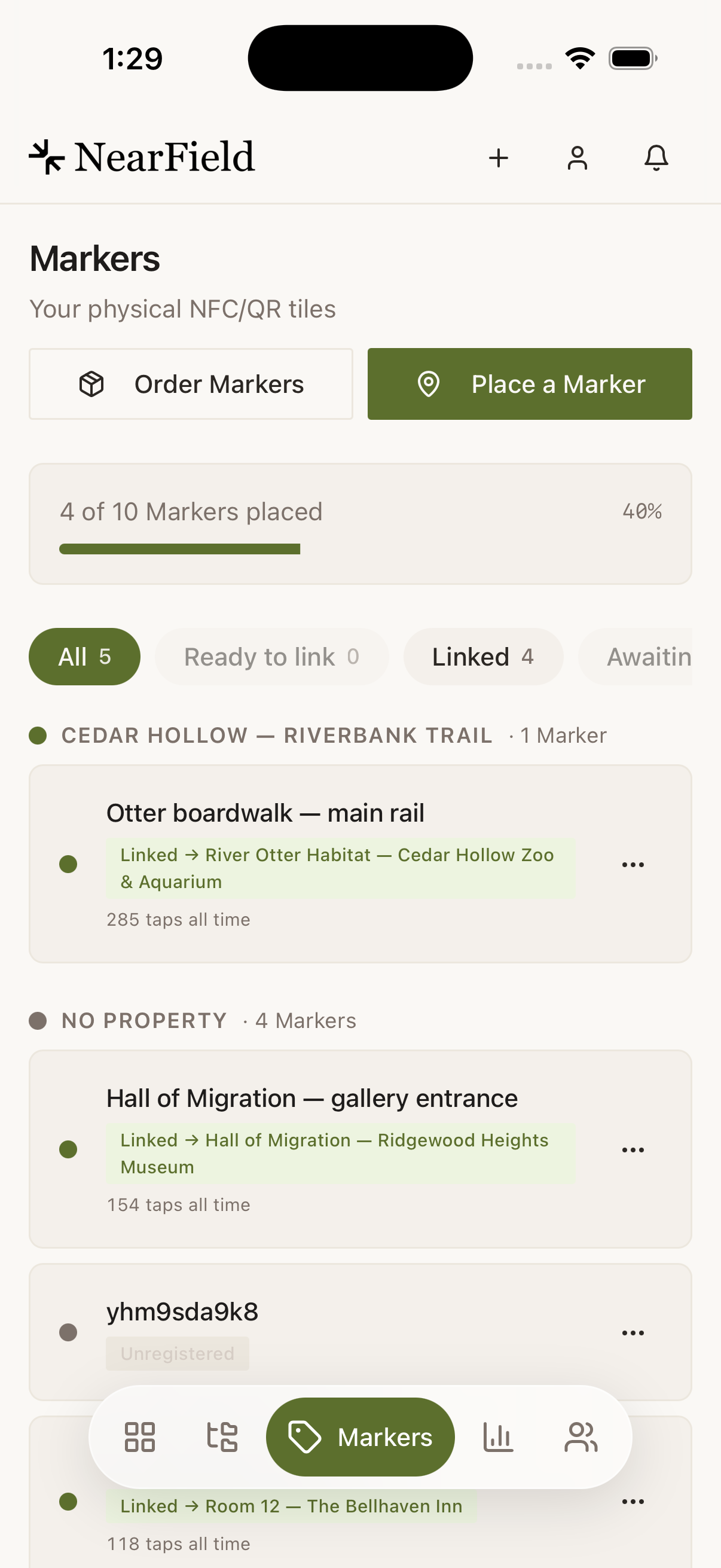
| What the scan finds | What you see | What to do |
|---|---|---|
| A Marker of yours, already linked | The Experience name, and "Taps and scans open it right now." | Edit what visitors see, point it somewhere else, or open its report |
| A Marker of yours with nothing on it | "What should this Marker do?" | Pick something you have already built, send visitors to a link, or set up a one-tap Action |
| A Marker shipped to you but not activated | "Activate this Marker" | Enter the six-character PIN from the back of the Marker |
| A real Marker on somebody else's account | "This Marker isn't on your account" | If it shipped to you, we can move it across: email us |
| A tag that is not a Marker | "That isn't a NearField Marker" | Hold the phone against the NearField mark specifically and try again |
What scanning never does
- It never writes to the Marker. NearField reads Markers and nothing else. The printed code on a Marker is fixed for its whole life. That is exactly why re-pointing one costs nothing and happens instantly.
- It does not scan QR codes. There is no camera scanner in the app. To test a printed QR, use the iPhone's own Camera app, which opens it the way a visitor would.
- It does not put you in front of the visitor page. A scan opens the Marker's own menu, so walking a wall with the app is a maintenance round rather than a rush of visits. To see what a guest sees, open the published link in a browser.
Example
Harbour Point Aquarium, a wall of eight identical Markers
The rockpool corridor has eight Markers, one per tank, all the same design. A guide reports that one of them opens the wrong tank's page.
Rather than checking eight rows in a list, the duty manager walks the corridor with the app open, scanning each Marker. The fourth one comes up as Tank 6: anemones, sitting under tank 5. Two taps re-point it, the sheet confirms "now opens Tank 5: sea stars", and nothing is reprinted.
Can I scan a Marker before it is registered?
Yes, and it is often the quickest way to register one. The scan recognises a Marker shipped to your account and goes straight to the PIN screen.
Why is there no Scan button on my phone?
The button only renders where a working NFC reader is available. It never appears in a web browser, including a browser on the same phone.
Does scanning work on someone else's Marker?
It reads, and then tells you it belongs to another account. You cannot see or change anything on a Marker you do not own.
Can I link a Marker to an unpublished draft?
Yes. The picker says so directly: linking a draft works, and visitors see it as soon as you publish.