The account-level page tells you whether anything is working. The per-Experience report tells you which thing. Get to it by tapping any row in Your Experiences on Stats, or from a Marker's own menu.
What the Experience report shows
The report opens with the same shape as the main page: the same remembered range, a headline sentence, the same four tiles with the same period-over-period deltas on a paid plan, and insight cards written about this Experience alone. If this Experience has had no visit for seven days, its own Last visit banner comes first. Below that it gets specific:
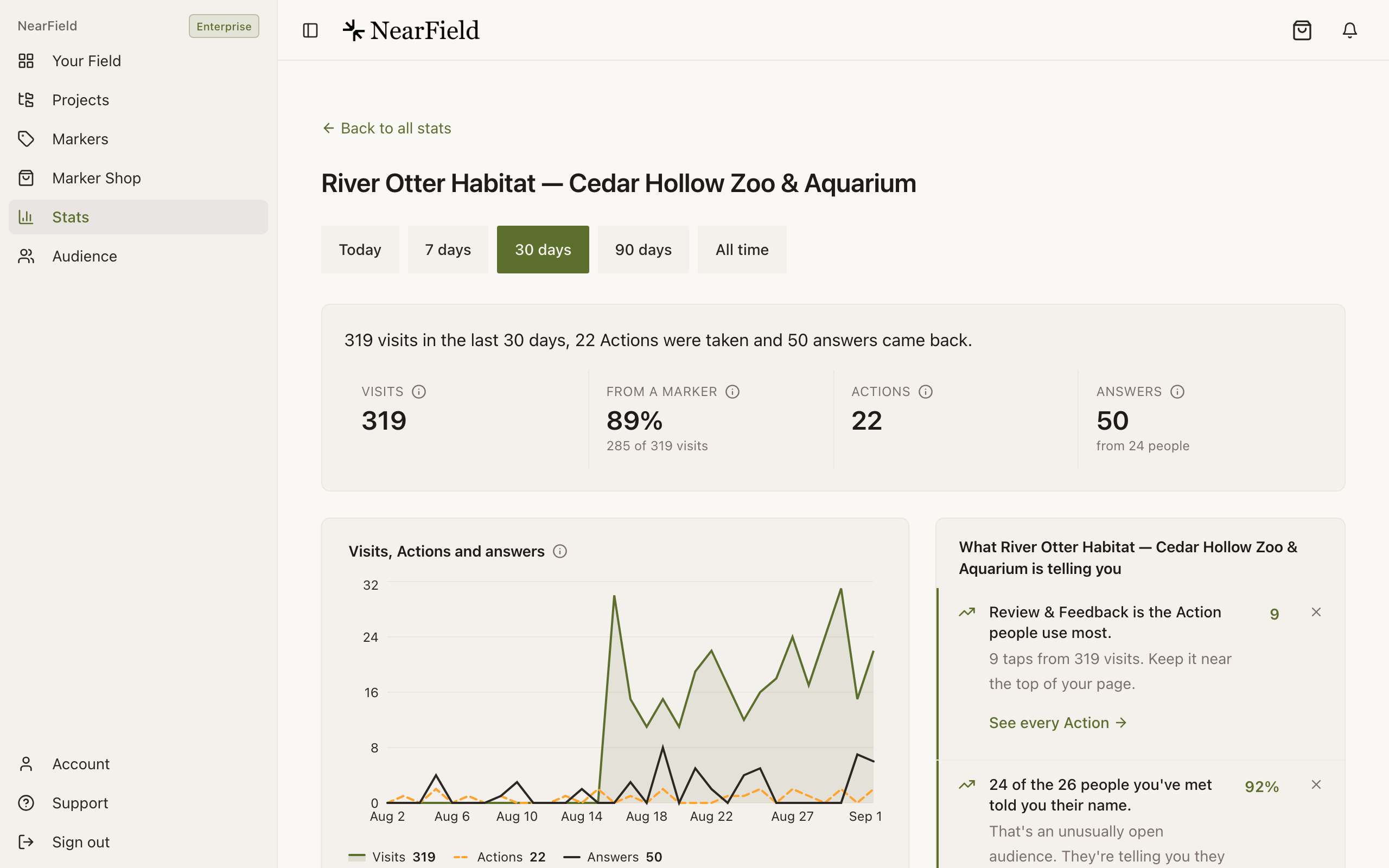
- Visits, Actions and answers
- This page's own trend, drawn the same way as the chart on Stats, which is where a Marker that was covered up for a fortnight shows itself. Below Growth it shows visits alone.
- How people found you
- The NFC tap, QR scan, Builder QR and Link split for this page alone.
- Which Markers are driving visits
- One row per Marker: how its visits arrived, visits in the range, all time, last visit and status. The rows' visits add up to the From a Marker tile above. Growth and above.
- Devices
- What people arrived on, out of the visits in the range. Useful when a layout looks wrong on one class of phone.
- Actions
- Each Action on the page with taps, completions and share of visits.
- Inclusion Bar
- Translations used, accessibility settings opened, read-aloud plays, PIN unlocks and button taps, with the languages requested and the buttons tapped most.
- Donations
- Total raised, average donation, and the most recent donors, on any page with a Donate block.
- What people told you
- From visit to answer: "319 visits, from 26 people met here.", then how many of those people told you their name and how many answered, and a card per question block. Growth and above.
Comparing two Markers on one Experience
- 1
Open the Experience report
From Stats, tap the row in Your Experiences.
- 2
Set a range long enough to be fair
Thirty days is the default and usually right. A week can make a quiet Tuesday look like a dead Marker.
- 3
Read Which Markers are driving visits
The columns are Marker, Marker ID, How they arrived, Visits, All time, Last visit and Status. If no Marker has been named, the Marker column is hidden and the ID leads. Naming them is what makes this table readable. On a phone each Marker is a card instead, with the same figures.
- 4
Compare visits against last visit, not against each other
Two Markers with 40 and 12 visits tell you little. Forty visits last seen today and twelve visits last seen five weeks ago tell you one of them has stopped being found.
- 5
Move the loser, then check back in a fortnight
Re-pointing or relocating a Marker changes nothing about its printed code, so this costs you a walk across the room and nothing else.
Example
Ridgewood Museum of Natural History, two Markers on one gallery
The mineral gallery Experience has two Markers: one on the plinth beside the first case, one on the wall by the gallery entrance. Over thirty days the plinth Marker shows 210 visits, last visit today. The entrance Marker shows 14 visits, last visit nineteen days ago.
The page is fine: 210 people found it. The entrance Marker is at shoulder height beside a fire door nobody stops at. It moves to the bench where school groups gather, keeps its printed code, and needs no reprint. Two weeks later it is at 60 and climbing.
Comparing Experiences against each other
Back on the main page, the Your Experiences table sorts by Visits, Actions and Answered. The useful comparison is rarely the top of the Visits column. It is a row with plenty of visits and almost nothing in the Answered column, flagged with a warning triangle. That page is being found and ignored.
- Plenty of visits, few answers: the page tells and never asks. Add one question block.
- Few visits, most of them answering: the content is good and the Marker is hidden. Move the Marker, not the page.
- Plenty of visits, mostly Link: people are sharing your link, which is worth knowing before you order more Markers.
- No visits at all since publishing: check the Marker is linked to this Experience rather than an older draft.
Redirects report differently
A Redirect has no blocks, so an Actions tile would always read zero. Its report swaps in Visits, From a Marker, From a link and On a phone, and shows the destination URL with a Change button, which is how you re-point a Redirect without going near the builder.
Why does a Marker show more visits than the Experience it points at?
Visits is scoped to your chosen range. All time beside it counts every visit through that Marker since it was placed, on any Experience, so a Marker that used to point somewhere else brings that history with it. You are comparing two different windows.
Can I see which Marker a specific visitor tapped?
Not by visitor. Marker attribution lives on the visit; the visitor timeline records what a person told you, not which Marker they touched.
I moved a Marker to a different Experience. What happens to its old numbers?
They stay with the Experience they happened on. History is not rewritten, so an Experience keeps the visits it earned even after the Marker moves away, and the Marker's All time figure keeps counting them too.
See which of your Markers is carrying the account.
Open Stats