Before you start
Have the Marker in your hand. The PIN is six characters, printed on the reverse under the NearField mark, and it is the only place that PIN exists: it is deliberately never shown inside the product on the screen that asks for it.
Register it
- 1
Open Markers in your dashboard.
Markers you are waiting on appear under On the way. Markers that have arrived and are ready to be switched on appear under Ready to place.
- 2
Press Place a Marker.
It is in the page header. The Enter PIN to activate button in the Ready to place panel opens the same dialog.
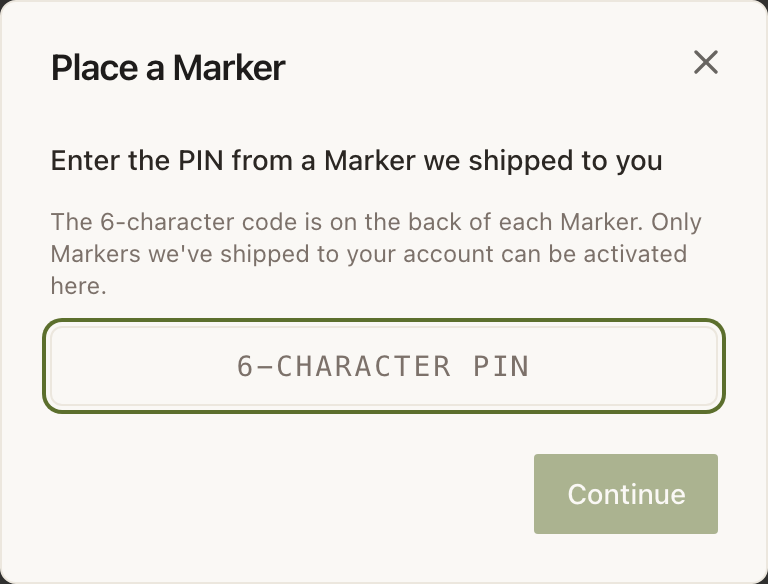
Continue stays inactive until six characters are in the field. - 3
Type the six characters from the back of the Marker.
The field uppercases as you type and Enter submits, so you can work through a box of Markers without touching the mouse.
- 4
Press Continue.
On success you see Marker activated, along with the Marker ID: the short code that identifies this Marker everywhere in the product.
- 5
Choose what it opens.
Pick one of your Experiences from the dropdown. If the Marker came from an order that already had an Experience attached, that one is pre-filled and the note reads Pre-filled from your order. Change it if needed. Give the Marker a name while you are here; see Naming and organising your Markers for a convention worth adopting.
- 6
Press Save, then tap the Marker with your phone to check it.
The final screen gives you the Marker's public address so you can test it from a laptop too. Register another Marker returns you to the PIN field with the same Experience still selected, which is what you want when a three-pack is all going in the same room.
Registering from the iOS app
If you have the NearField Builder app, you can skip typing the Marker ID entirely: press Scan, hold the phone against the Marker, and the sheet that opens takes you straight to a six-slot PIN field that submits itself on the sixth character. Everything else is the same. See Scanning a Marker with the iOS app.
When the PIN is not accepted
- PIN must be 6 characters.
- You are a character short or a character over. Nothing was sent to the server.
- PIN not recognized.
- The most common cause is a misread character. Type the code again, and if a character could be read two ways, try the other reading: the pairs that trip people up are the ones that look alike in print. This message is deliberately the same whether the PIN does not exist, belongs to someone else, or has already been used, so it never leaks anything about another account's hardware.
- You need to be signed in to place a Marker.
- Your session expired while the dialog was open. Sign in again and the PIN will still be on the back of the Marker.
- Something went wrong. Try again.
- A network or server error. Nothing was claimed, so retrying is safe.
Example
The Bellhaven Hotel, forty rooms
The Bellhaven registers a floor at a time. Housekeeping brings up a tray of Markers, the duty manager works down the PINs with the Experience already pre-filled, pressing Register another Marker each time, and names each one for its room number as it goes. Forty Markers takes about fifteen minutes, and the naming means a fault report of "the one in 214" is findable a year later.
Do I need a paid plan to register a Marker?
No. Registering a Marker with its PIN works on any plan, or with no plan at all. Activating one on a live page starts your 14-day trial if it has not started yet. Once the trial is over, an account with no plan places three Markers, and the publish flow asks for a plan before a fourth.
Can I register a Marker before it arrives?
No. The PIN is printed on the Marker and nowhere else, so the Marker has to be in your hand.
I registered it but did not pick an Experience. Is that a problem?
Not at all. It sits as Unplaced: ready to link until you point it somewhere. Read Unlinked Markers for what a visitor sees in the meantime.
Will I ever need the PIN again?
No. The PIN is used once, to claim the Marker. Relinking, renaming and disconnecting all happen from your account without it.